Visualizing Thoughts: My Journey with Obsidian Mind Maps
As I delve deeper into web development, the complexity of projects, ideas, and tasks can quickly become overwhelming. Juggling client requirements, coding logic, deployment strategies, and personal learning goals requires a robust system for organizing thoughts. While I've found checklists helpful, they often lack the visual connections needed to see the bigger picture. That's where Obsidian, combined with its mind map plugin, has become an indispensable tool for me.
Why Mind Maps?
Mind maps excel at representing hierarchical information and showing relationships between different concepts. Unlike linear notes or lists, they allow for a more organic flow of ideas, branching out from a central theme. This visual approach resonates well with how our brains often connect disparate pieces of information.
For web development, this is incredibly useful. You can start with the project name as the central node and branch out to features, technologies, deployment steps, bugs, and future ideas. Seeing everything laid out visually helps in planning, identifying dependencies, and tracking progress.
Obsidian + Mind Maps: A Powerful Combination
Obsidian is a fantastic note-taking app based on local Markdown files. Its strength lies in linking notes together, creating a "second brain." Adding the mind map plugin transforms these linked notes into interactive visual diagrams.
Here's how I'm using it:
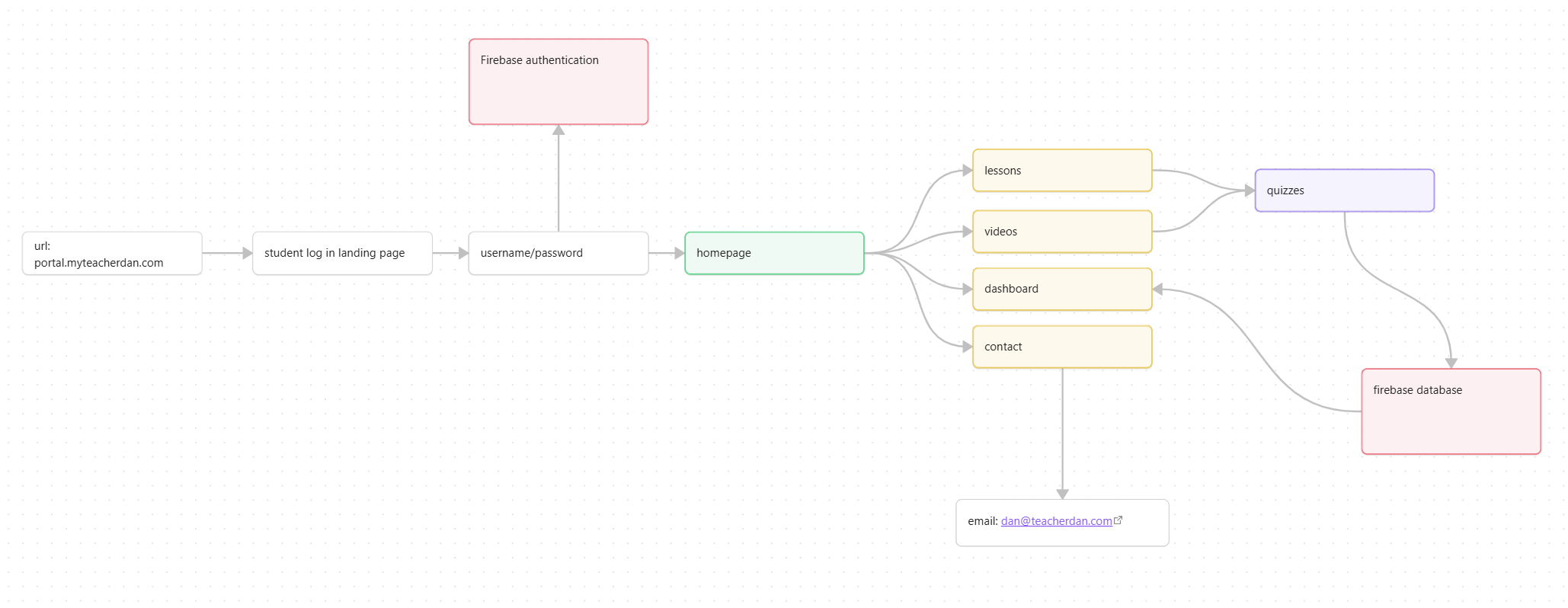
- Project Planning: For my `myteacherdan.com` portal, I created a flowchart to visualize the user's journey. It starts from the landing page, goes through the login, and branches out to the main homepage functions like "Lessons," "Videos," and "Dashboard," and shows how they connect to Firebase for authentication and data.
- Structuring Websites: I use a mind map to visualize the ecosystem of all my websites. It shows my main `danmills.dev` site branching out to all the sub-domain tool sites (like stocktool, almanac) and also shows the `myteacherdan.com` site branching out to its related student portals.
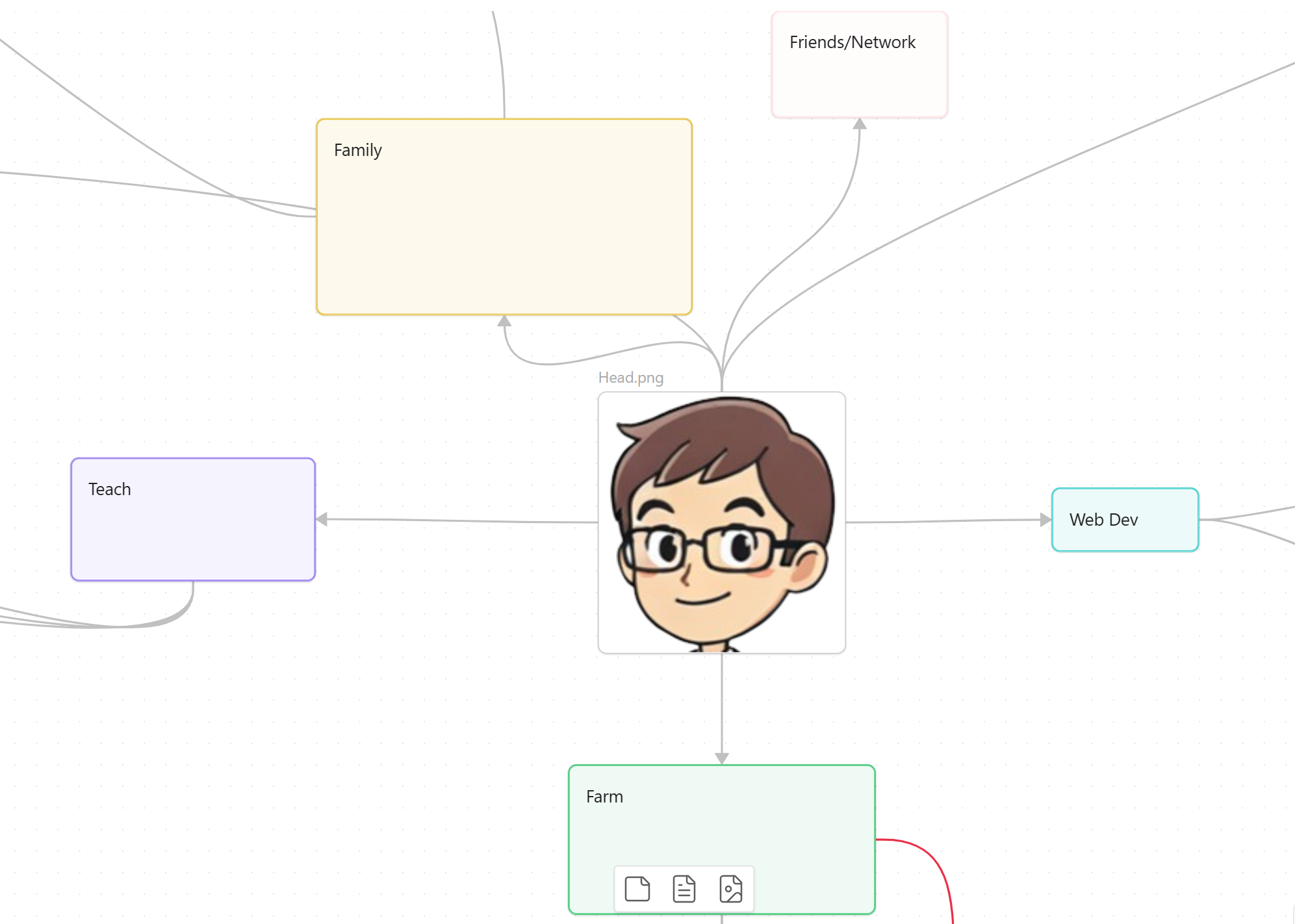
- Personal Organization: Beyond web development, I use it to map out different areas of my life – with "me" at the center, branching out to Family, Teaching, Web Dev, and Farming – helping me see connections and manage my time more effectively.

Getting Started
If you're using Obsidian, installing the mind map plugin is straightforward:
- Go to Settings > Community Plugins > Browse.
- Search for "Mind Map".
- Install and enable it.
Once enabled, you can open any Markdown note as a mind map, usually via the command palette (Ctrl/Cmd+P) or by clicking the three-dot menu in a pane and selecting "Open as Mind Map." The structure is often derived from Markdown headings and lists.
Conclusion
For anyone feeling overwhelmed by complexity, whether in coding, studying, or life in general, I highly recommend exploring mind mapping. Tools like Obsidian make it easy to integrate this visual thinking process into your daily note-taking and knowledge management workflow. It doesn't replace checklists, but it provides a crucial higher-level view that helps make sense of the chaos.